 Login
Login

Adding a Custom Caller ID
Not Supported
This legacy feature is no longer supported. Outgoing calls using custom Caller ID borrowed from other networks, are likely to be filtered and blocked, or marked as spam. It is recommended to port your phone number to MaxoTel, or to place calls via the service provider that holds the allocated number.
Note: MaxoTel and other service providers do allow you to present a ported number before the number porting process is complete. You can set the Caller ID when the number port is accepted by the losing service provider.
Note: When using a verified custom number that is not on your account, your calls may be filtered by some upstream carriers, and additional actions may be required for each call, i.e Pressing 1. You should purchase your number from, or transfer it to MaxoTel (number porting) in order to ensure the continued use of a particular Caller ID setting.
For Telstra numbers specifically, when you call other Telstra phone numbers you may be prompted to press a key before the call will connect. This is part of Telstra's anti-spam call strategy and there is no known way to disable the prompt at this time. It is also possible that calls may be outright rejected.
For more information see IVR Prompts or Failed Calls When Dialling Out With a Telstra Custom Caller ID
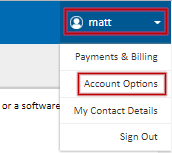
To add a fixed phone or mobile number you own to the available caller ID list for overstamping, navigate to Account Options from the account menu at the top right of the My Account Portal
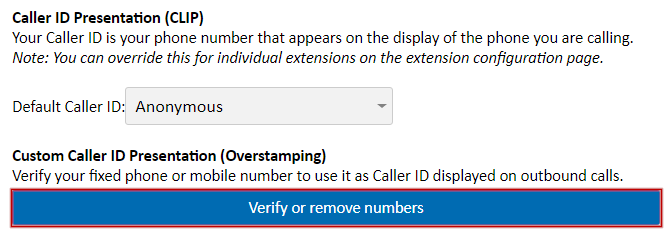
Under Custom Caller ID, click Add or Remove Numbers
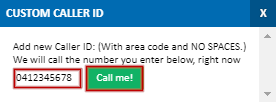
Enter the phone number to verify, including the area code (eg. 0712345678) and click Call Me
For a mobile phone, an SMS message with a verification code will be sent to the number. Enter the verification code, then click Complete Verification
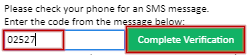
For a fixed phone or other landline number, a phone call will be placed to the number entered. Please answer this and enter the verification code, then click Complete Verification

The verified number will now be selectable as both the account's default caller ID and in the SIP trunk or PBX extension options.
Removing a Customer Caller ID
If you no longer own a phone number that has been verified for custom Caller ID, it can be removed from the caller ID list from the Account Options section of the Account menu, at the top right of the My Account Portal.
Under Custom Caller ID, click Add or Remove Numbers.
You will be shown a list of all previously verified numbers. To remove one, locate the number, then click the  icon.
icon.
 Australian Sales team about our phone system plans?